IPTV on iPhone & iPad: App Store Setup Guide for Canada 2026
August 14, 2026 · 10 min read
Two things are converging on iPhones and iPads across Canada right now: back-to-school season is putting a fresh wave of students back on their own devices instead of the family TV, and the 2026 NFL regular season kicks off September 9 with the first full Sunday slate on September 13. Both crowds want the same thing — live channels that actually play on iOS without fighting Apple's ecosystem.
That fight is real. iPhone and iPad are the one major platform we haven't covered in depth on Viking IPTV, mostly because Apple treats IPTV players very differently from Android boxes, Fire TV Stick, or a Samsung Smart TV app. The App Store review process, background-streaming limits, and Apple's stance on multimedia players all shape which apps survive and how you should configure them.
This guide covers what most Canadian setup articles skip: how to actually pick between the App Store's surviving IPTV players, how AirPlay changes your living-room setup, why your iPhone's WiFi behaves differently from a wired Firestick, and how iCloud fits (or doesn't) into recording and backups. If you're setting up on other devices too, our guides on Fire TV Stick and Samsung/LG Smart TVs cover the rest of the household.
Why iPhone/iPad Are Different: App Store Restrictions & Limitations
Android lets you sideload an APK from any source in under a minute. Apple doesn't allow that on a standard, non-jailbroken iPhone — every app on your Home Screen has to come through the App Store, and Apple's review guidelines are notably stricter for IPTV and generic media players than for Android's Play Store. That means the pool of usable apps is smaller, and it rotates: players get pulled, renamed, or resubmitted under a new developer account more often than on Android.
The practical effect is that you should treat 'which app is available today' as a moving target, not a permanent choice. An app that ranked at the top of App Store search six months ago can vanish after a takedown request, while a near-identical build reappears under a different name a few weeks later. Bookmark two or three working apps rather than betting everything on one.
iOS also restricts background activity more aggressively than Android. A player can't keep decoding video in the background indefinitely the way a Firestick app can — when you switch apps or lock the screen, playback pauses unless the app specifically supports Picture-in-Picture. That's a real difference from our Fire TV Stick setup guide (/blog/iptv-canada-firestick-setup-guide), where background and multi-window behavior is far more permissive.
Finally, Apple does not allow apps to advertise or link out to third-party IPTV subscription sellers inside the app itself — which is exactly why every IPTV player on the App Store, including the ones below, is a 'bring your own playlist' generic client. You configure your own service inside a neutral player; the app itself sells nothing.
Not sure whether Smarters Pro or GSE fits your iPhone better?
Top IPTV Apps in the App Store (2026): Smarters Pro, GSE Smart IPTV, IPTVX Compared
Three names come up repeatedly when Canadians search for IPTV players on iOS: IPTV Smarters Pro (and its rebrand, Smarters IPTV Pro), GSE Smart IPTV, and IPTVX. All three accept Xtream Codes logins and M3U playlists, all three run on iPhone, iPad, and Apple TV, and all three have iOS-specific quirks worth knowing before you commit an evening to setup.
IPTV Smarters Pro has the cleanest, most TV-like interface of the three — categorized live channels, a proper VOD/series library layout, and multi-profile support so different family members can keep separate favorites. Its EPG grid is the most reliable of the group in our testing, but it typically gates full functionality behind a short trial before requiring in-app activation, and it's historically been the most frequent target of App Store takedowns, so expect occasional gaps in availability.
GSE Smart IPTV is the long-running default — it's been on the App Store in some form longer than any competitor, which counts for something given Apple's churn. The interface looks dated next to Smarters, and its EPG rendering is more basic, but it's dependable for straight Xtream Codes or M3U playback and offers a one-time-purchase Pro tier for people who dislike recurring app fees. If you only install one app as a fallback, GSE is the sensible pick.
IPTVX is the newer, minimalist option — a lighter interface with faster channel-list loading on older iPhones, which matters if you're setting this up on a hand-me-down device for a student. It trades some of Smarters' polish and GSE's longevity for speed and a smaller footprint. None of the three is objectively 'best' — Smarters wins on interface, GSE wins on track record, IPTVX wins on speed on lower-end hardware. For a broader device-by-device breakdown beyond iOS, see our app-selection guide at /blog/best-iptv-canada-how-to-choose.
Step-by-Step: Setting Up IPTV Smarters Pro on Your iPhone
Download IPTV Smarters Pro (or Smarters IPTV Pro, depending on which listing is live when you search) from the App Store. On first launch, you'll be asked how you want to add a playlist — this is the decision point covered in detail in the next section, but for now choose 'Login with Xtream Codes API' if your provider gave you a username, password, and server URL, which is the most common setup format.
Enter the server address exactly as provided, including the port number if one was given — a missing port is the single most common reason a first connection fails. Enter your username and password, then tap Add User. The app will pull your channel list, VOD library, and EPG data on the first sync, which can take anywhere from a few seconds to over a minute depending on how many channels your provider bundles.
Once loaded, go into Settings inside the app and check the EPG source and time zone — iOS doesn't always inherit your device's regional time zone correctly inside third-party players, so a schedule showing programs an hour or two off usually means a manual time zone fix in-app rather than a broken playlist. Organize your most-watched channels into Favorites immediately; with three-digit channel counts common on general entertainment packages, an unsorted list becomes unusable fast.
If you're also running the same subscription on a second device — a partner's iPhone, an iPad in the kitchen, or a Fire TV Stick downstairs — keep the connection count in mind before you add every device you own. Our guide on sharing one subscription across multiple devices safely (/blog/share-iptv-multiple-devices-safely-canada-avoid-bans) covers how to avoid the login conflicts and account flags that come from careless multi-device setups.
Connecting via Xtream Codes API vs M3U Playlist
Every major iOS IPTV app supports two connection methods, and picking the right one saves you a setup headache. Xtream Codes API login uses a server address, username, and password — the app talks to your provider's panel directly, which means live EPG data, VOD categories, and series groupings load automatically and stay in sync if your provider updates the channel lineup.
M3U playlist import instead points the app at a single playlist URL (or an uploaded .m3u file) containing every channel's stream link in one flat list. It's simpler to set up — one URL, done — but you typically lose the structured VOD/series browsing and often get thinner or no EPG data unless your provider supplies a separate XMLTV EPG URL alongside the playlist.
On iPhone specifically, Xtream Codes API is the better default when it's available, because iOS apps render the categorized Xtream interface far more reliably than a flat M3U list on a small screen — scrolling through several hundred unsorted M3U entries on a 6-inch display is a genuinely worse experience than the same content organized into Xtream's Live/Movies/Series tabs. Reserve M3U import for providers that don't offer Xtream Codes access, or as a fast backup method when your primary Xtream login is temporarily down.
Performance Optimization: WiFi Speed, Buffering Fixes, ISP Detection
An iPhone or iPad on home WiFi behaves differently from a wired Firestick or Smart TV in one important way: it's competing for the same 2.4GHz/5GHz radio as every other phone, laptop, and smart-home device in the house, and it's the one device most likely to be held right next to your body or in a pocket, attenuating signal. If a channel buffers on your iPhone but plays fine on the living-room TV a few meters from the router, signal contention — not your subscription — is usually the cause.
Start with the basics: force your iPhone onto the 5GHz band if your router broadcasts both (5GHz has less range but far less interference and higher throughput for video), and check Settings > WiFi > the (i) icon next to your network for a weak signal indicator. If you're streaming HD or 4K VOD content, close other bandwidth-heavy apps and background downloads — iOS's App Refresh and iCloud Photo sync both compete for the same pipe during initial setup.
Canadian ISPs are also a genuine variable here, and this is where iPhone testing gets tricky: because iOS hides granular network diagnostics behind Apple's own interface, you can't always tell whether a slowdown is local WiFi contention or upstream ISP throttling of streaming traffic without switching to cellular data as a comparison test. If a channel that buffers constantly on WiFi plays smoothly on LTE/5G cellular, that's a strong signal your ISP is shaping streaming traffic rather than your setup being at fault — our detection and prevention guide (/blog/isp-throttling-iptv-canada-detect-prevent) walks through the full diagnostic process, including which Canadian providers this affects most.
One more iOS-specific detail: enable 'Low Data Mode' only if you're trying to conserve cellular data, not on home WiFi — it deliberately caps background refresh and can throttle stream quality on some players, which looks identical to a buffering problem but has nothing to do with your provider.
AirPlay to Apple TV: Streaming from iPhone to Your Living Room
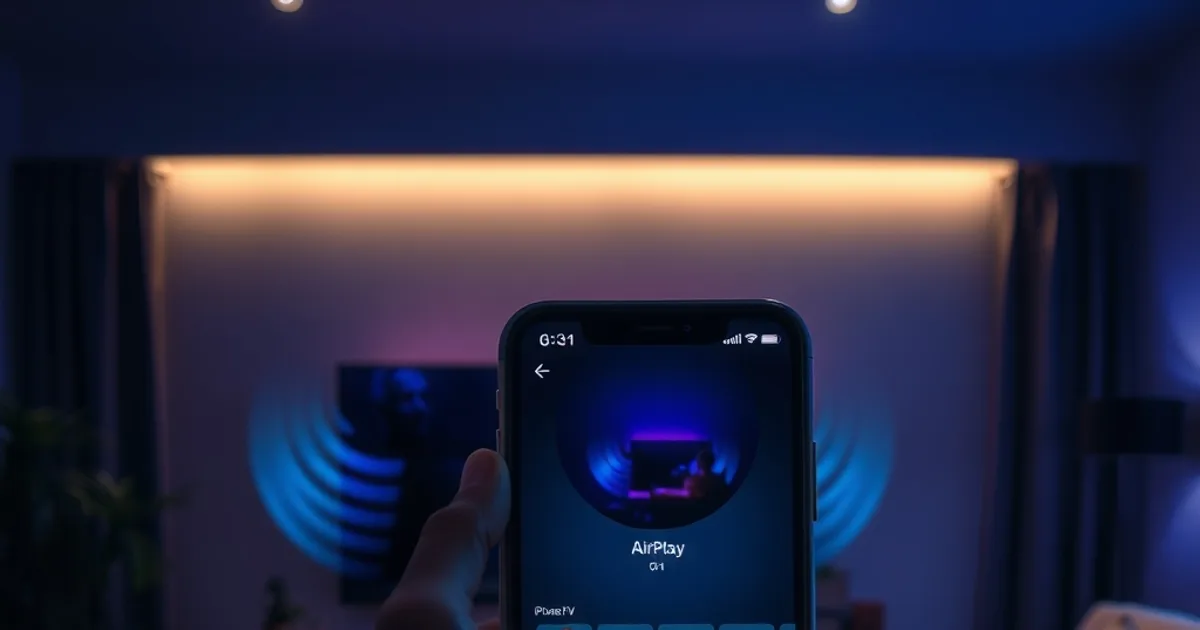
This is the part almost every other iPhone IPTV guide skips, and it's one of the genuine advantages of being in Apple's ecosystem: if you own an Apple TV box, you can mirror or AirPlay your IPTV stream from iPhone or iPad straight to the big screen without installing anything extra on the Apple TV itself, and without the app needing a dedicated tvOS version.
In most IPTV apps, open Control Center on your iPhone (swipe down from the top-right corner) while a channel is playing, tap Screen Mirroring, and select your Apple TV from the list. Some apps, including IPTV Smarters Pro, also support native AirPlay video casting from inside the player itself rather than full screen mirroring — check for an AirPlay icon in the player controls, since native AirPlay streams the video feed directly and keeps the app's touch controls usable on your phone while the picture plays on the TV, whereas full mirroring duplicates your entire iPhone screen including notifications.
There's a real trade-off to know before you rely on this daily: AirPlay depends on both devices being on the same WiFi network and adds a small relay step, so it inherits any buffering issues from your home WiFi (see the section above) plus a bit of its own latency. For a dedicated, always-on living-room setup, a native app running directly on the Apple TV or a Fire TV Stick will generally be more stable than AirPlaying from a phone every time — treat AirPlay as the right tool for casual or occasional big-screen viewing, not as a replacement for a proper set-top box setup.
EPG Setup & Favorite Channels on iOS
The Electronic Program Guide (EPG) is what turns a flat channel list into an actual TV Guide — what's on now, what's coming up next, and the ability to tap ahead and see tonight's schedule. On iOS, EPG reliability varies more between apps than almost any other feature, which is why the comparison earlier in this guide matters: Smarters Pro's grid view is generally the most complete and the most touch-friendly for scrolling through a night's schedule.
If your EPG shows blank or mismatched program titles after the initial channel sync, give it time — full guide data for a large channel package can take longer to populate than the channel list itself, sometimes requiring you to fully close and reopen the app once after the first sync completes. If it's still wrong after that, double-check the time zone setting mentioned earlier; a wrong time zone is the most common reason a guide looks 'broken' when the data itself loaded correctly.
For Favorites, resist the urge to star everything in the first ten minutes. Watch normally for a few days, then build your Favorites list from what you actually watched — most iOS IPTV apps put Favorites in their own dedicated tab or at the top of the channel list, and a curated list of 15-20 channels is far more usable day-to-day on a phone-sized screen than a 'starred' list that's really just half your subscription.
Get your iPhone and Apple TV set up before Week 1 kickoff on September 13.
Troubleshooting: App Crashes, Login Issues, Buffering on Cellular
App crashes on launch are usually one of two things on iOS: an outdated app version that hasn't been updated for the current iOS release, or a corrupted local cache from a previous session. Force-close the app, check the App Store for a pending update, and if the crash persists, delete and reinstall — because IPTV players store your Xtream login server-side rather than only on-device, reinstalling doesn't lose your subscription, just your local Favorites and view history.
Login failures ('Invalid credentials' or a timeout) almost always trace back to one of three things: a typo in the server URL or missing port number, your provider's server being temporarily down for maintenance, or too many simultaneous connections on the same account (see the multi-device sharing guide linked above if you've added several devices). Test the same login on a second device or app before assuming your subscription itself is the problem.
One point worth being clear-eyed about: iOS IPTV apps generally don't support built-in DVR recording to iCloud the way a home DVR box records to local storage — App Store review guidelines and background-processing limits make persistent background recording impractical for this category of app. If you want to save something, iOS's native Screen Recording (Control Center) captures the player output to your Photos library, which then syncs to iCloud Photos like any other video if you have that enabled — it's a workaround, not a dedicated feature, and it counts against your iCloud storage plan like any other saved video.
Buffering specifically on cellular data (LTE/5G) rather than WiFi usually means either a weak cellular signal in that specific room, or Low Data Mode enabled for that cellular plan in Settings > Mobile Data. If cellular playback is consistently worse than WiFi even with strong signal bars, that's a good moment to re-check the ISP throttling guide (/blog/isp-throttling-iptv-canada-detect-prevent) — some carriers manage streaming traffic differently on mobile data than fixed-line ISPs do on home WiFi. And if you're setting up IPTV across a full household — iPhone in one room, a Smart TV in another — our Samsung/LG Smart TV setup guide (/blog/iptv-samsung-lg-smart-tv-canada-setup) and Fire TV Stick guide (/blog/iptv-canada-firestick-setup-guide) round out the rest of the devices this guide doesn't cover.
Frequently asked questions
Why isn't there an official IPTV Smarters or GSE app made specifically 'for' a Canadian IPTV provider?
Apple's App Store guidelines don't allow generic media-player apps to be built around or advertise a specific paid streaming service. Every IPTV app on the App Store is a neutral player — you supply your own Xtream Codes login or M3U playlist inside it. This is normal and not a sign anything is wrong with your subscription.
Can I sideload an IPTV app on iPhone without using the App Store?
On a standard, non-jailbroken iPhone, no — Apple only allows apps installed through the App Store (or enterprise/TestFlight distribution, which isn't practical for everyday IPTV use and can expire without warning). Unlike Android or Fire TV Stick, there's no reliable APK-style sideload path for casual users.
Does AirPlay reduce video quality compared to watching directly on the Apple TV?
AirPlay itself doesn't re-encode or intentionally downgrade quality, but it adds a WiFi relay step between your iPhone and Apple TV, so it inherits your home WiFi's speed and stability. On a strong 5GHz network it's usually indistinguishable from native playback; on a weak or congested network it will buffer more than a dedicated Apple TV app would.
Why does my EPG show the wrong times on my iPhone?
This is almost always a time zone mismatch inside the app rather than bad guide data. Check the app's Settings for an EPG or general time zone option and set it to match your local zone manually — iOS doesn't always pass your device's regional settings through to third-party players correctly.
Is IPTV Smarters Pro or GSE Smart IPTV better for an iPad specifically?
Both scale reasonably well to iPad's larger screen, but Smarters Pro's grid-based EPG and category layout take better advantage of the extra screen space for browsing. GSE's simpler layout works fine on iPad but feels more like a stretched phone interface than a designed tablet experience.
My IPTV app keeps logging me out on iPhone — what's causing that?
The most common causes are too many simultaneous logins on one account across multiple devices, an app update that cleared stored credentials, or a provider-side server restart. Re-enter your login once; if it happens repeatedly within the same day, check how many other devices are currently connected on the same subscription.